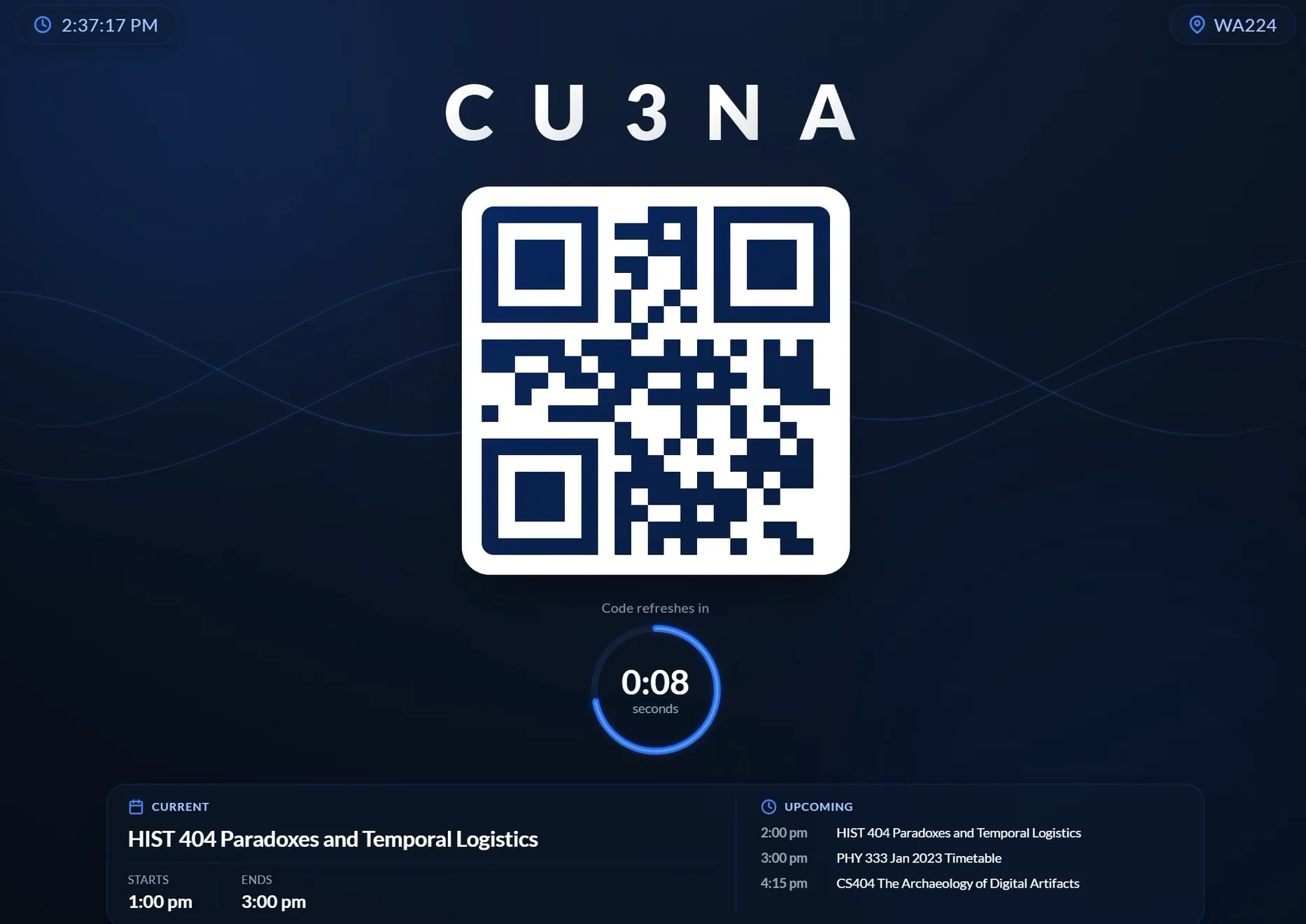
QR/Scan Kiosks
QR / Scan Kiosks provide an option for students to register their attendance autonomously with no Faculty interaction.
QR codes (rolling or static) can be shown on a display at the room entry or on a secondary display in the room. If used at room entry, card scanners can also be attached to allow students to scan using their cards.
Setup
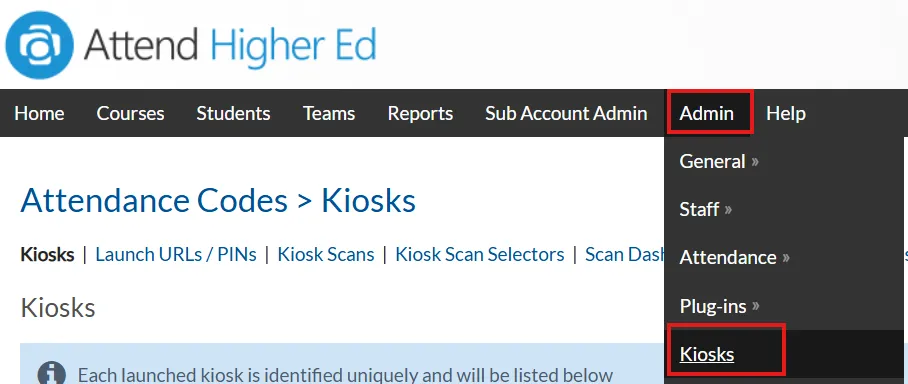
In the aPlus+ Attendance admin portal, navigate to Admin > Kiosks
Defining Kiosk Configurations
When a kiosk is setup, a predefined configuration must be selected. These configurations are managed from the 'Kiosk Configurations' menu.

Creating or Editing a Configuration
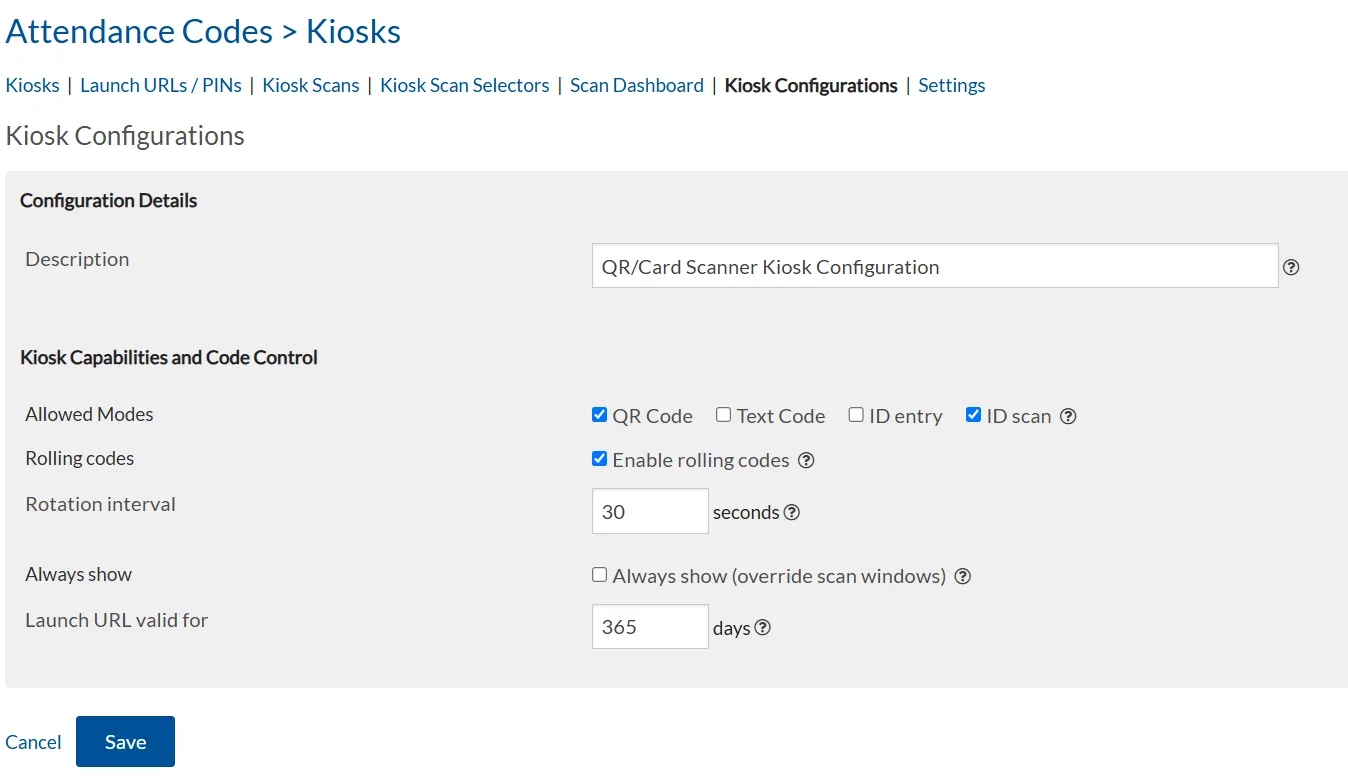
Description: Descriptive name for this configuration profile
Allowed Modes: Specify which entry modalities are presented on the kiosk screen.
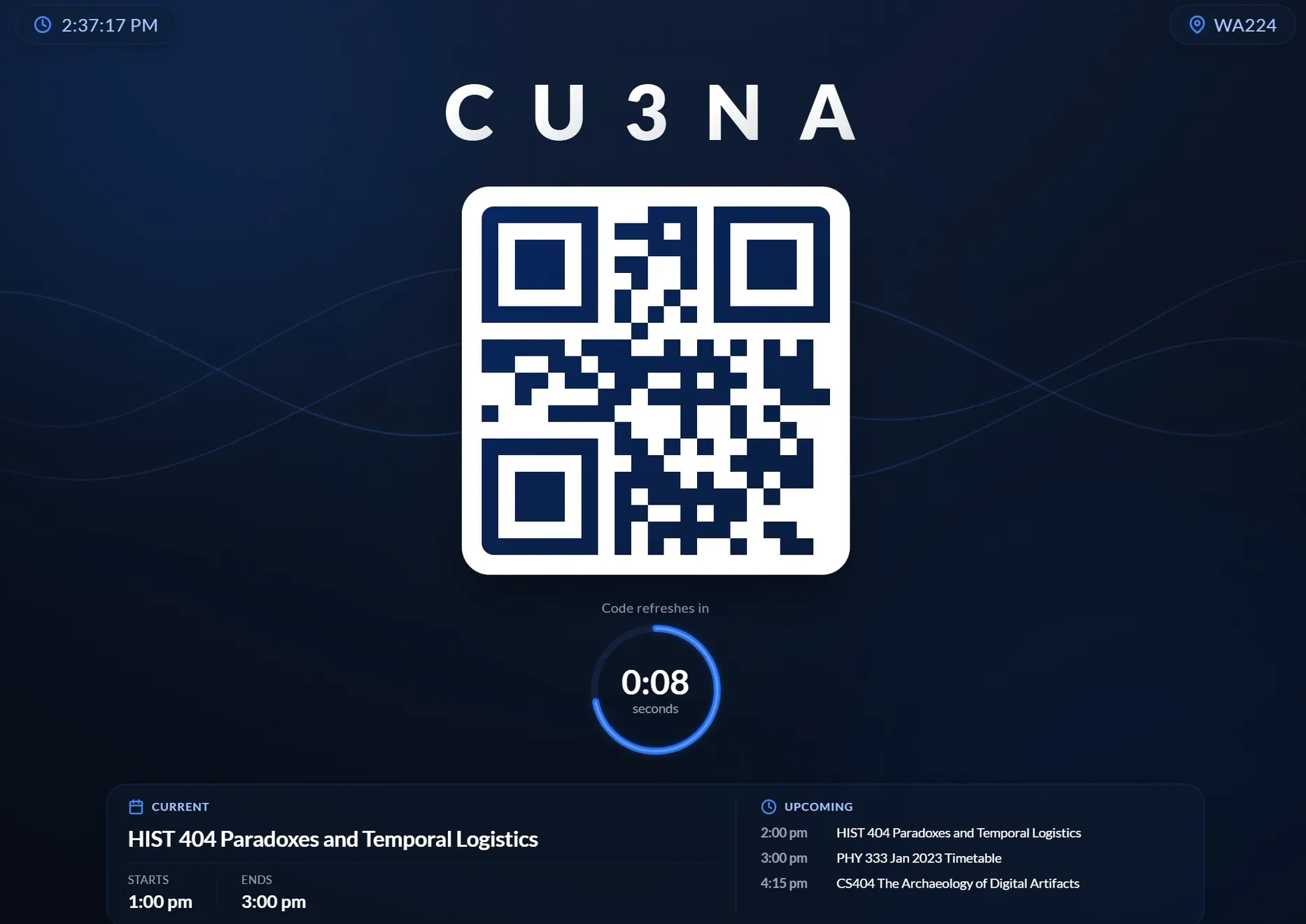
- QR Code: Displays a QR code that students can scan with their device
- Text Code: Display an alphanumeric code that students can enter.
- Example showing QR and alphanumeric (rolling).
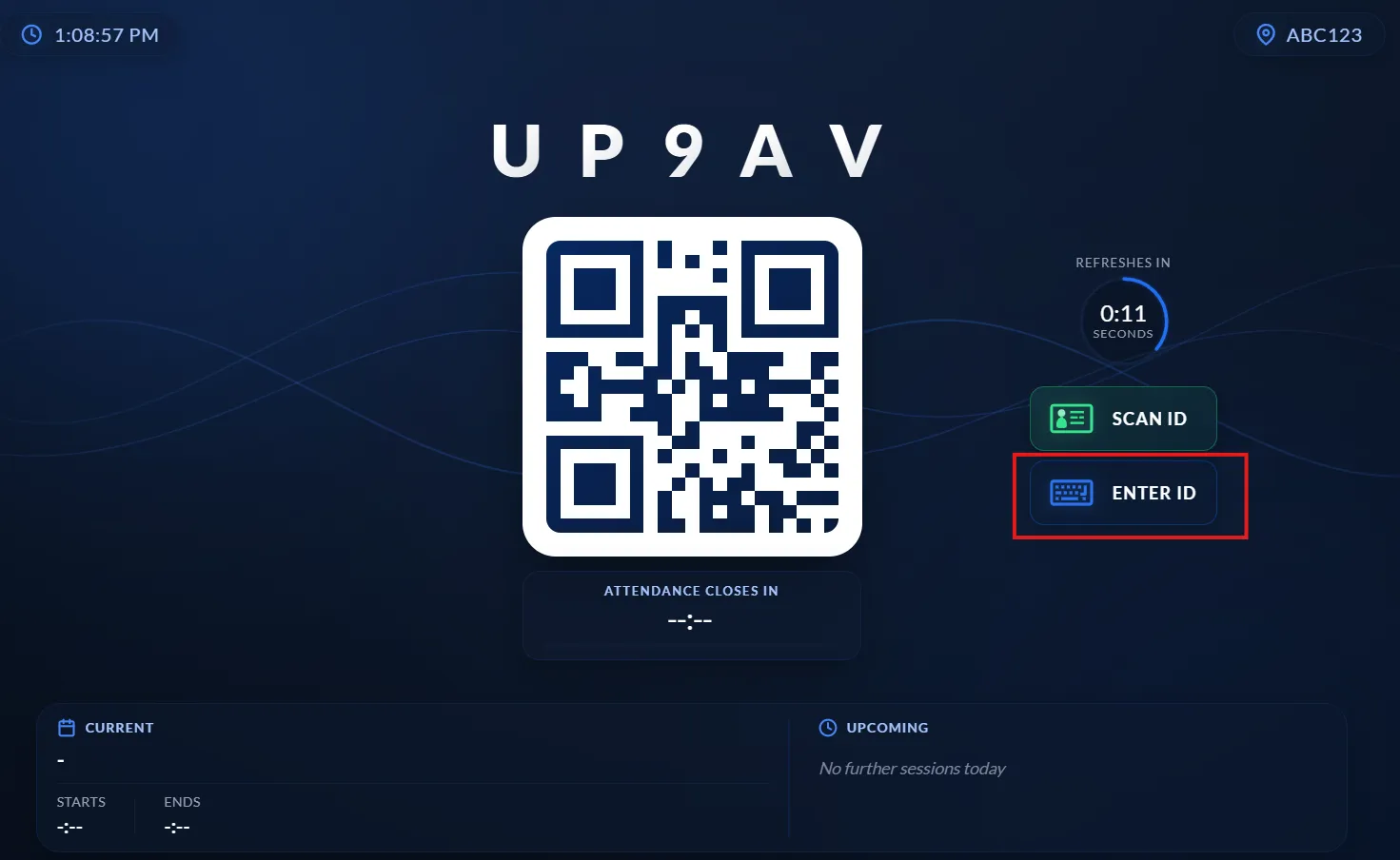
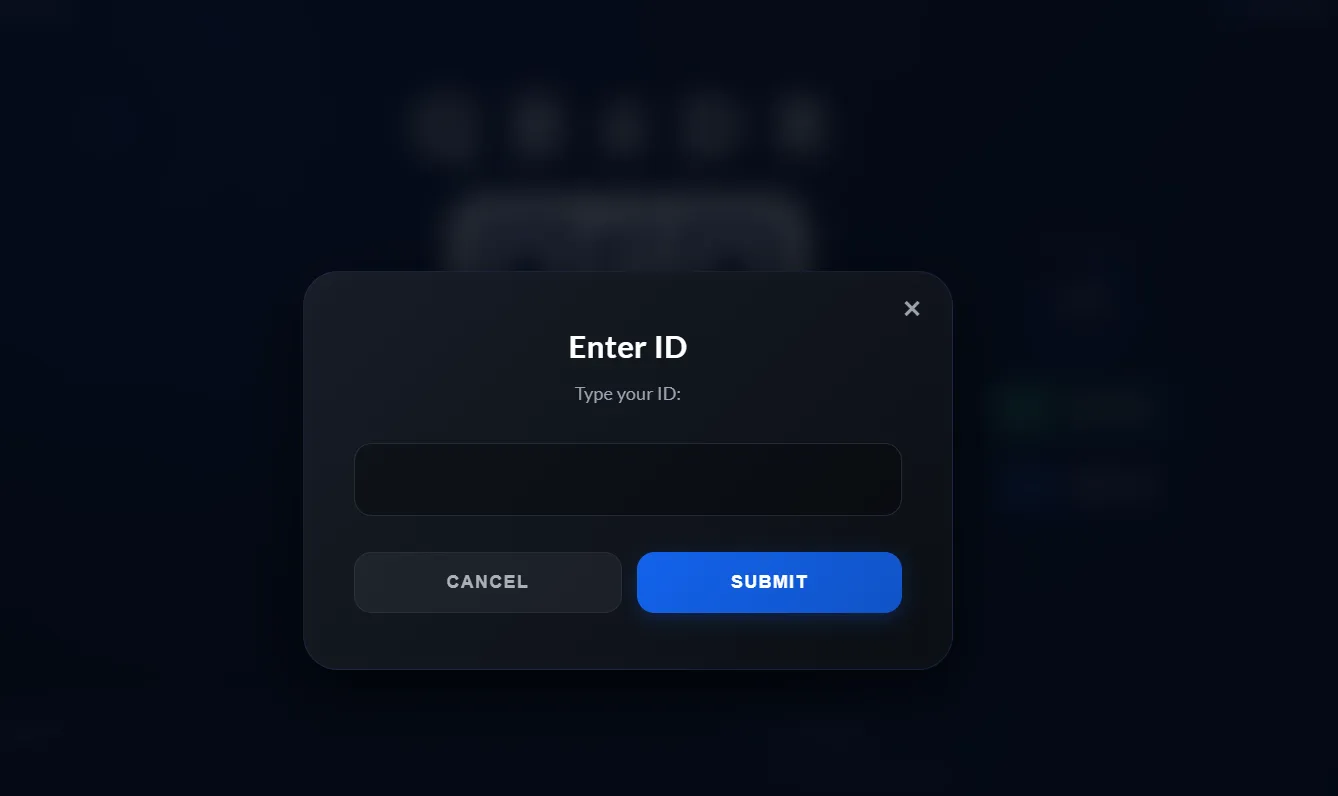
- ID Entry: Allows students to type in an identifier such as their card, or SIS Student ID number.
- Example showing manual ID entry
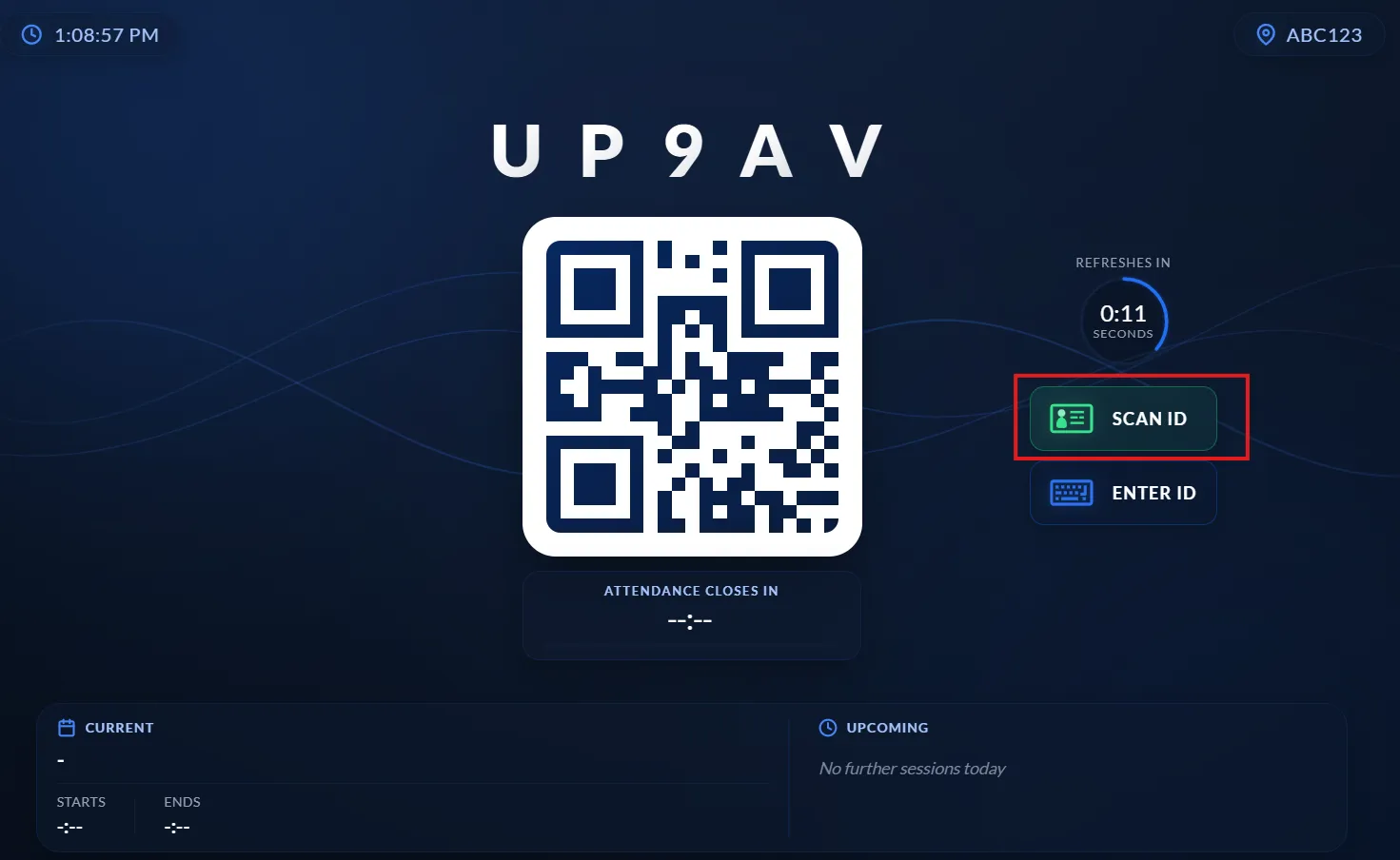
- ID Scan: Support card scanning with a suitable USB card reader that is in Keyboard Emulation mode (static card numbers only).
- Example showing that ID scan is available
Rolling Codes: Turn on rolling QR / Alphanumeric codes, to prevent the sharing of these codes.
Rotation Interval: Number of seconds between codes rolling.
Always Show: Show QR/Alphanumeric codes outside of the allowed scanning windows.
Launch URL valid for: The number of days that any kiosks lauched using this configuration are valid for by default.
Launch URLs/PINs
A launch is managed from the Launch URLs/Pins page. When setting up a kiosk for a new location this page is used to set that kiosk up for that location (locations can also be defined on the device hosting the kiosk).
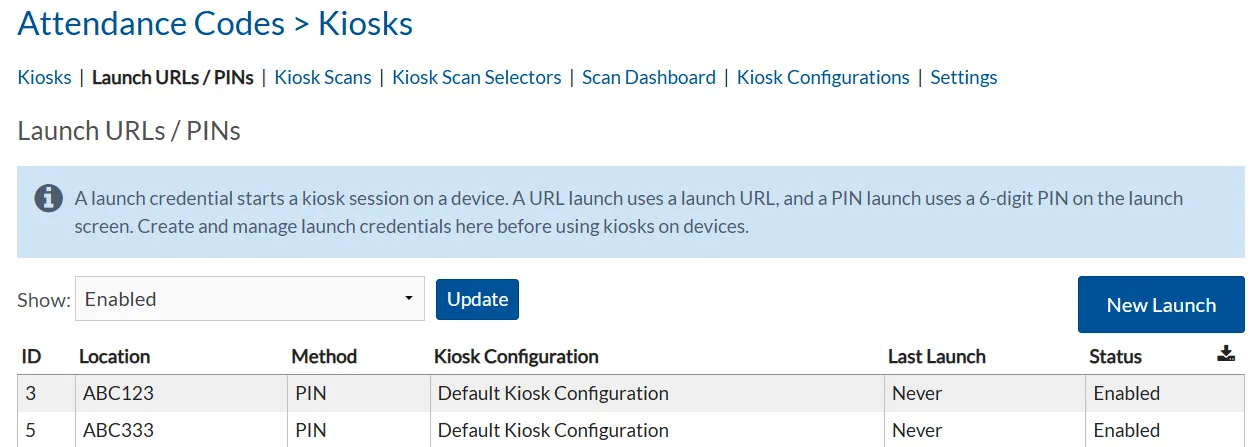
To setup a new location, select 'New Launch'.
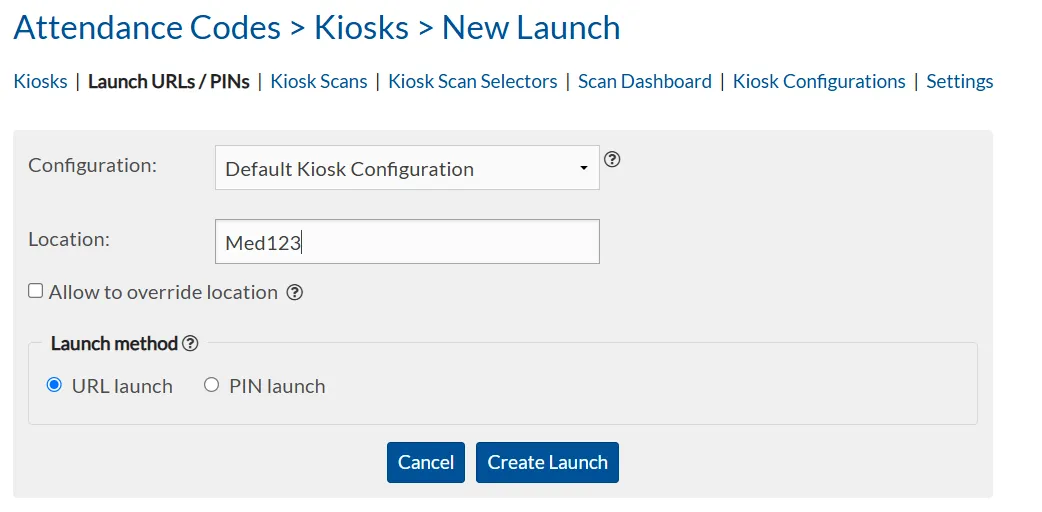
Configuration: This is the predefined configuration that this kiosk launch should use.
Location: Location name, this should match any locations provided in the scheduling information that is already held in aPlus+.
Allow to override location: Allows the location to be set on the kiosk rather than being defined by this launch link.
Launch Method: This defines how the kiosk is signed in, on the device.
URL: Contains an encrypted key within the launch URL.
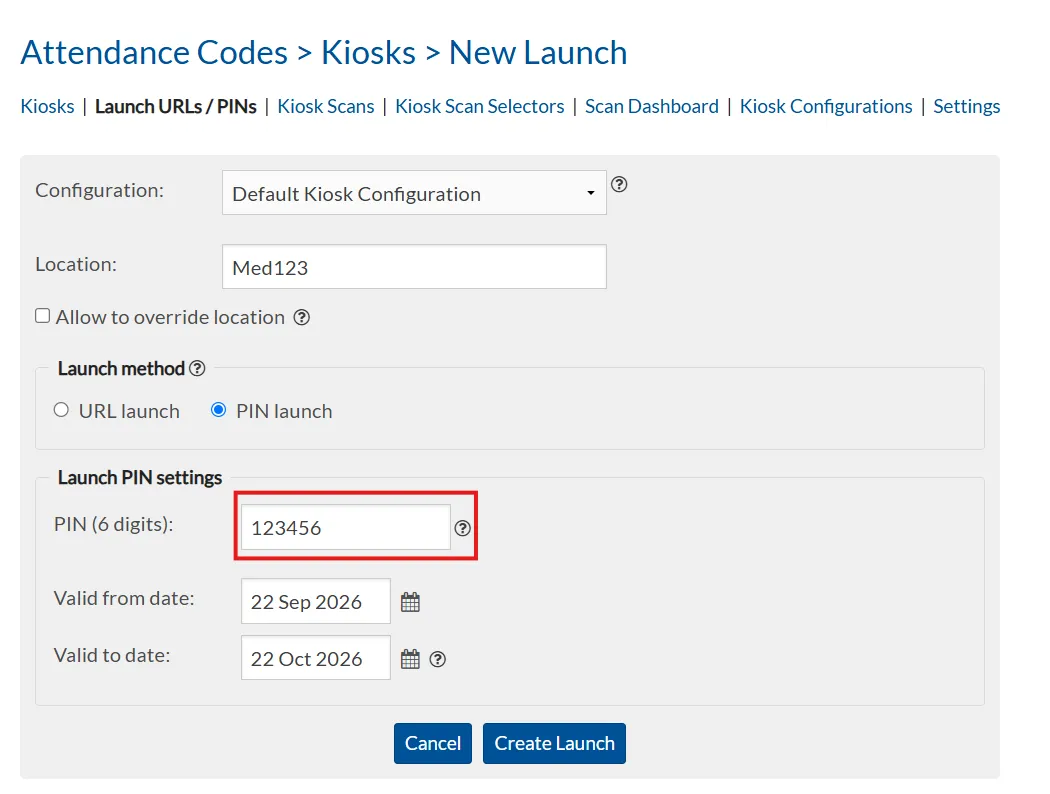
PIN: Associates a unique PIN with each kiosk launch.
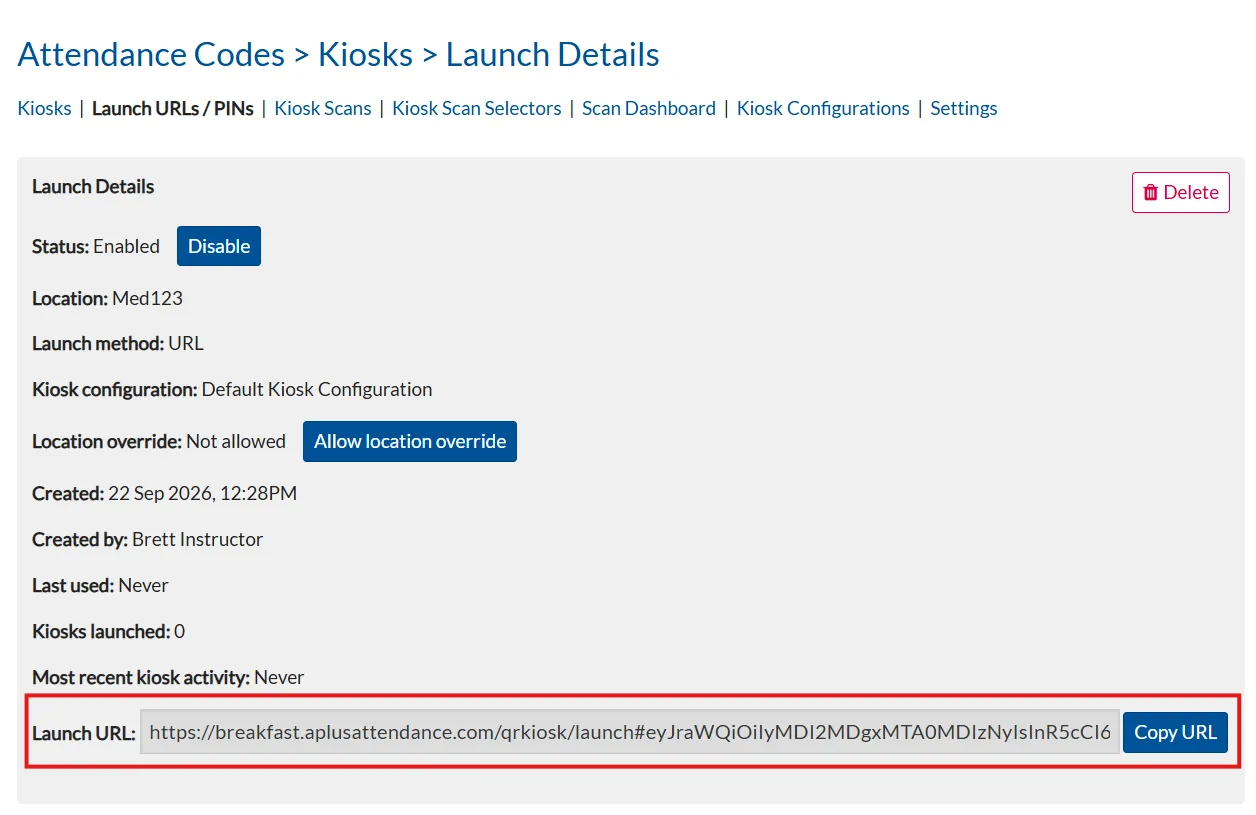
After selecting 'Create Launch' a screen will show the confirmed settings, where the launch URL can be retreived from.
URL Option:
Pin Option:
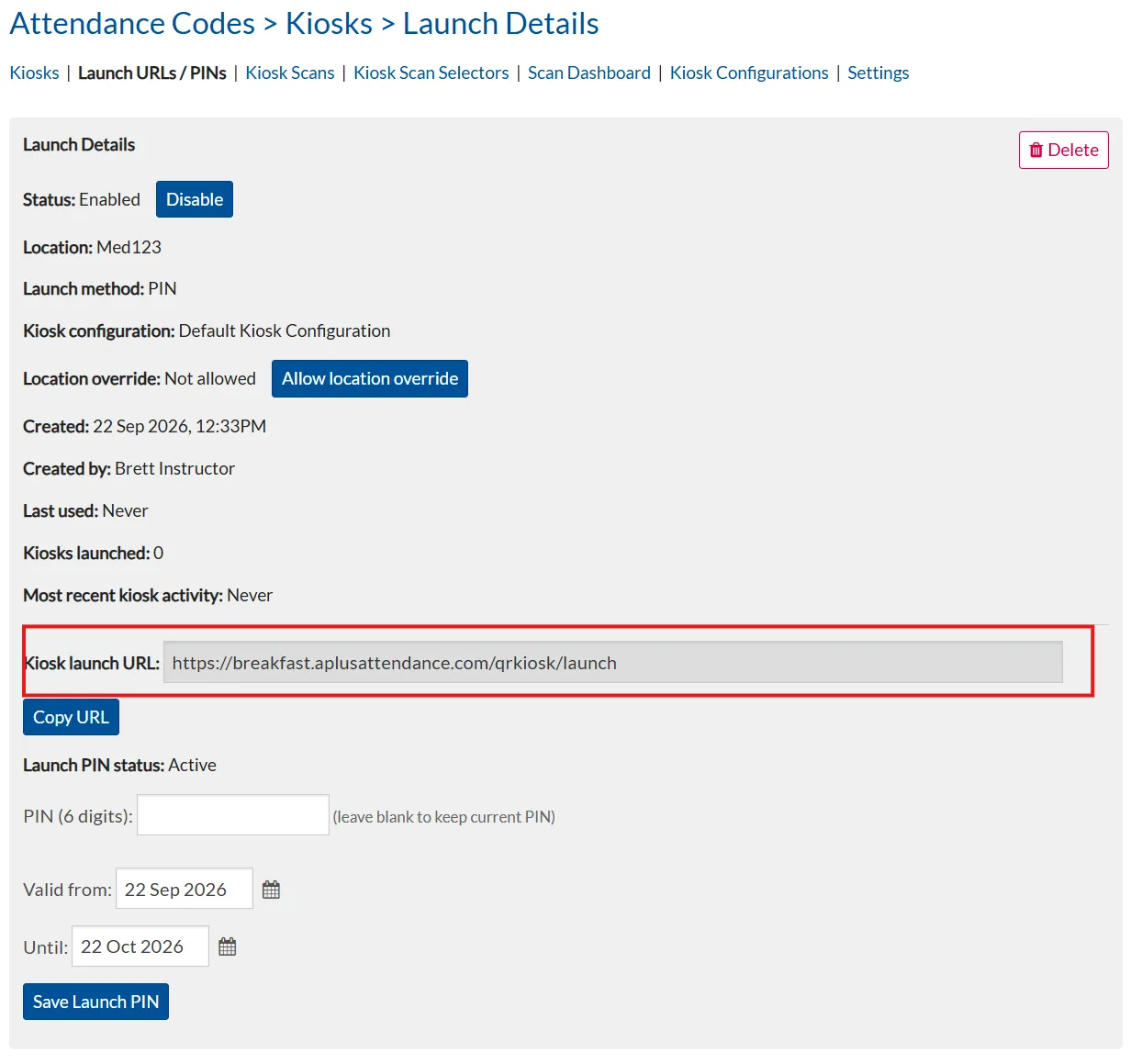
The launch URL is used on the kiosk hardware to log the kiosk page in.
Kiosk Monitoring
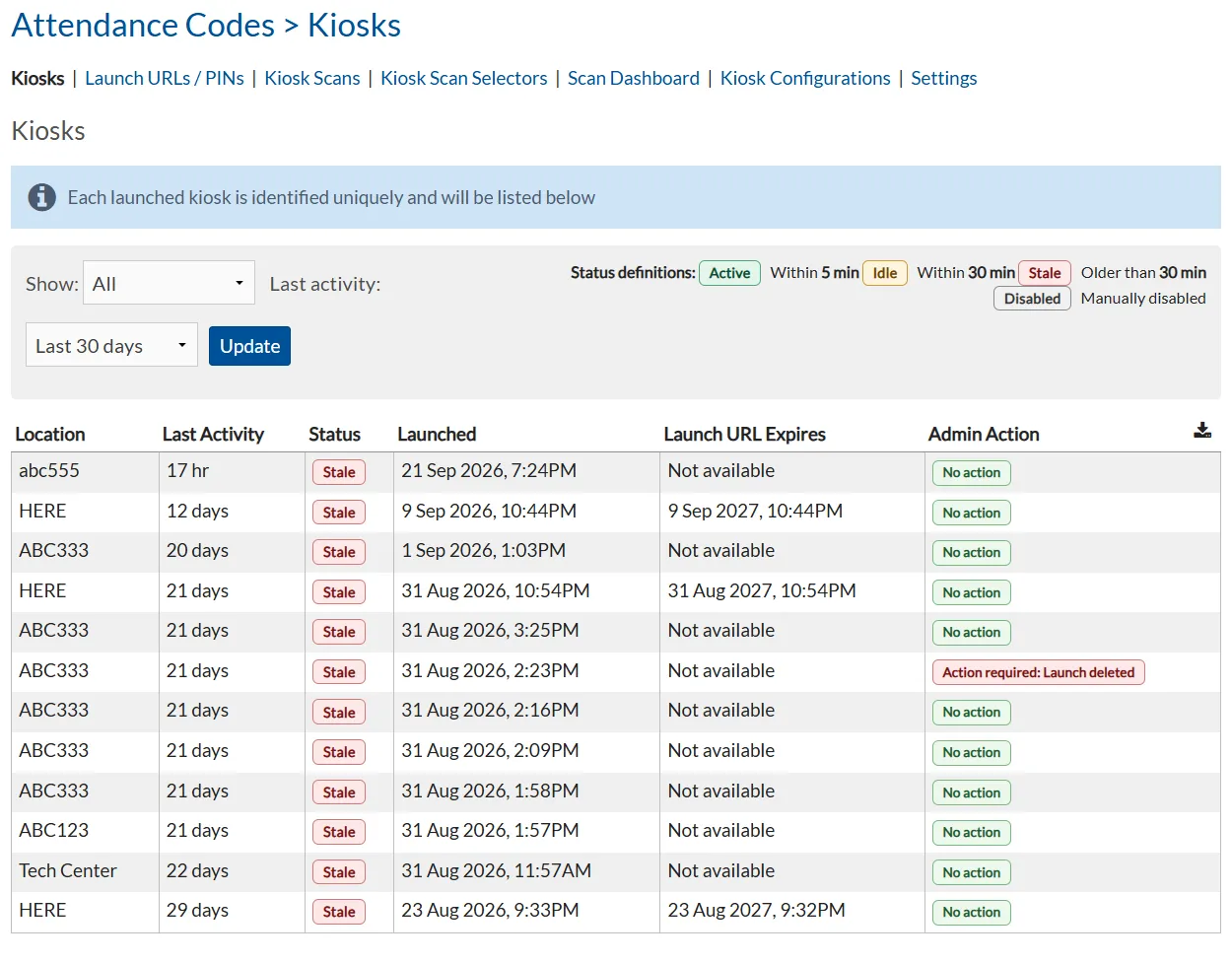
This page shows the unique launches that have been used, along with the status of those launches. Selecting a kiosk allows you to see more information about that launch occurance.
Kiosk Scan Selectors
When students register on a kiosk, their registration must fall into a selector on this page. This restricts registration to an acceptable time period relative to the start and end of a scheduled course session. Attendance statuses must be first setup in the Attendance Status page.
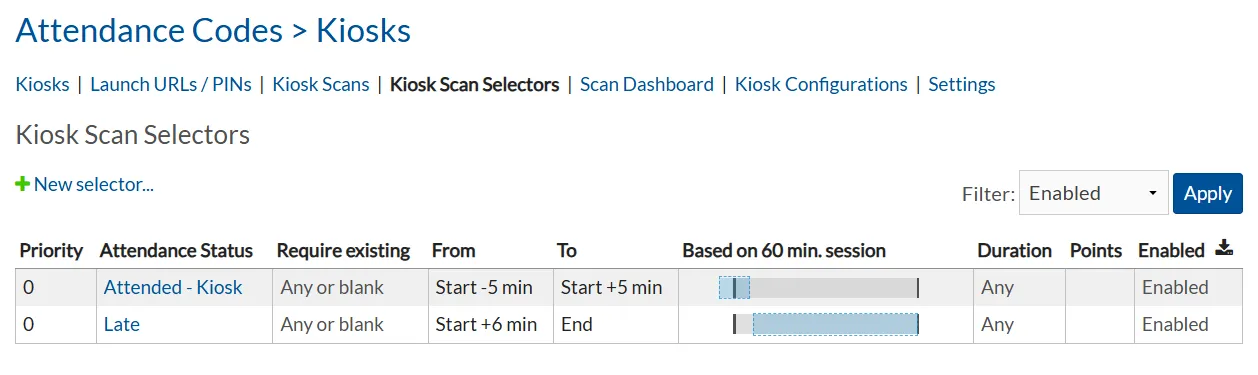
To setup a new selector, select '+selector'.
To edit a selector, select the attendance status column.
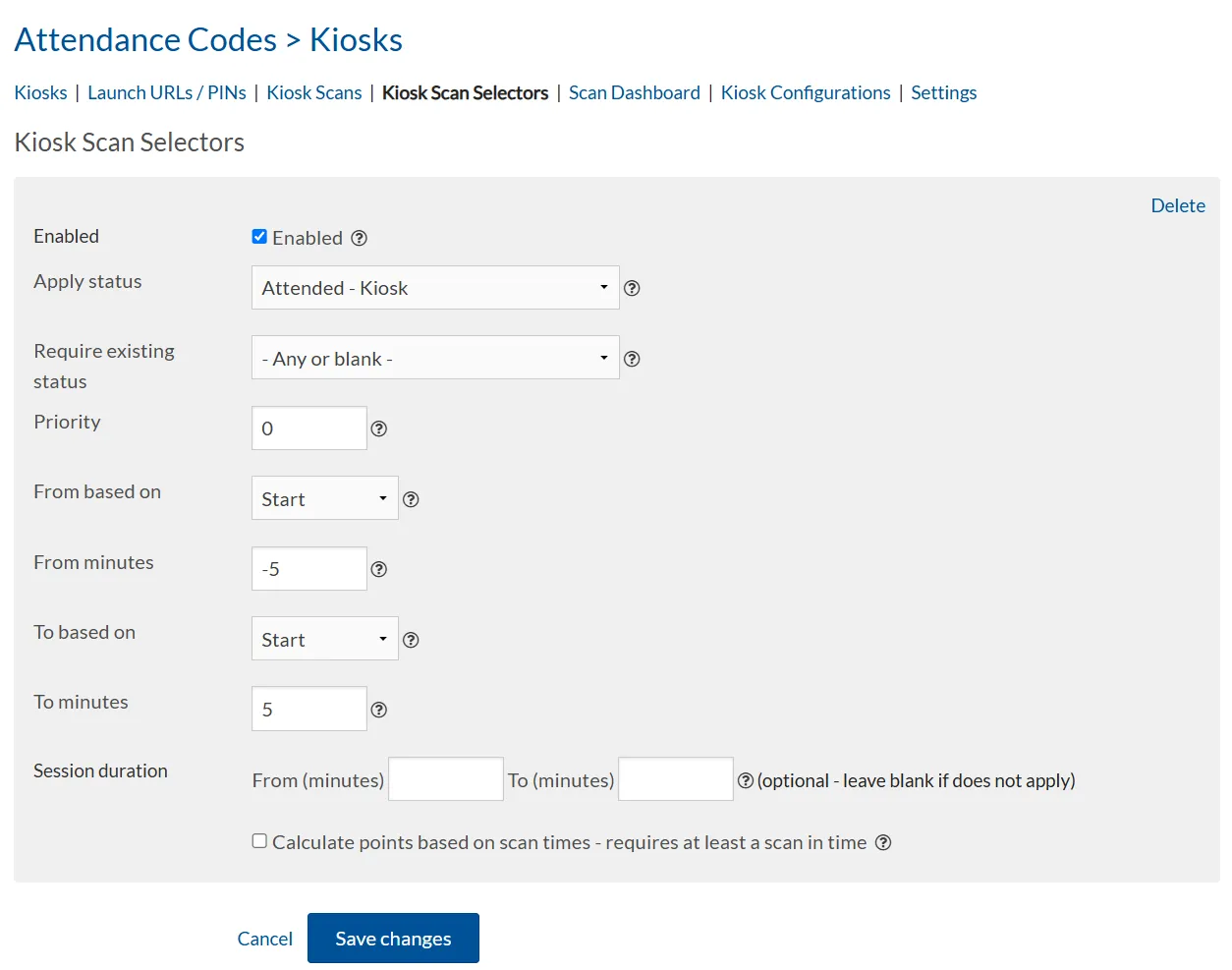
Enabled: Defines whether the selector is currently activated.
Apply Status: Defines the attendance status that a student will be marked with if they register within this selectors time window.
Requires Existing Status: Defines whether an existing status must already be in place in order for a student be marked with this status. This is commonly used for situations where a student must scan in and out of a class.
Priority: Allows for the ordering of selectors should more than one match the current criteria when a student registers.
From Based On: Select the Start or End of class.
From Minutes: Relative minutes from the Start or End of the class that the window applies to.
To Based On: Select the Start or End of class.
To Minutes: Relative minutes from the Start or End of the class that the window applies to.
Session Duration: Allows the selector to be applied to sessions that have a specific duration. For example, you may wish to have a narrower acceptable registration window for a 1 hour lecture, than a 4 hour lab.
Calculate points based on scan times - requires at least a scan in time: If using attendance points for attendance awards, this allows the registration times to be used to allocate a proportion of an attendance point. For example, for a 100 minute session, that is weighted with 1 attendance point. If the student registers 10 minutes into the session, the student would be awarded 0.9 attendance points. This is an advanced option that should only be selected in coordination with your aPlus+ Attendance support team.
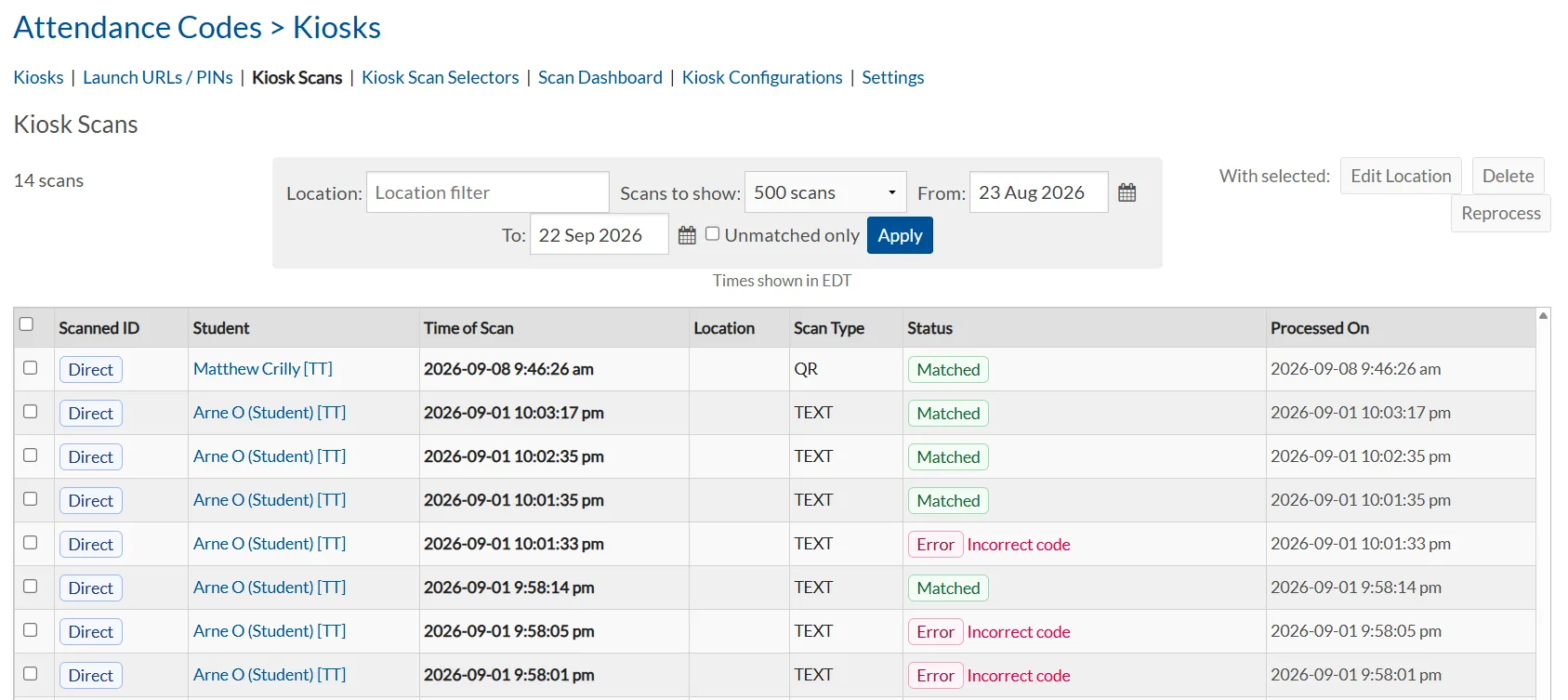
Kiosk Scans
This page allows a history of all kiosk activity to be inspected
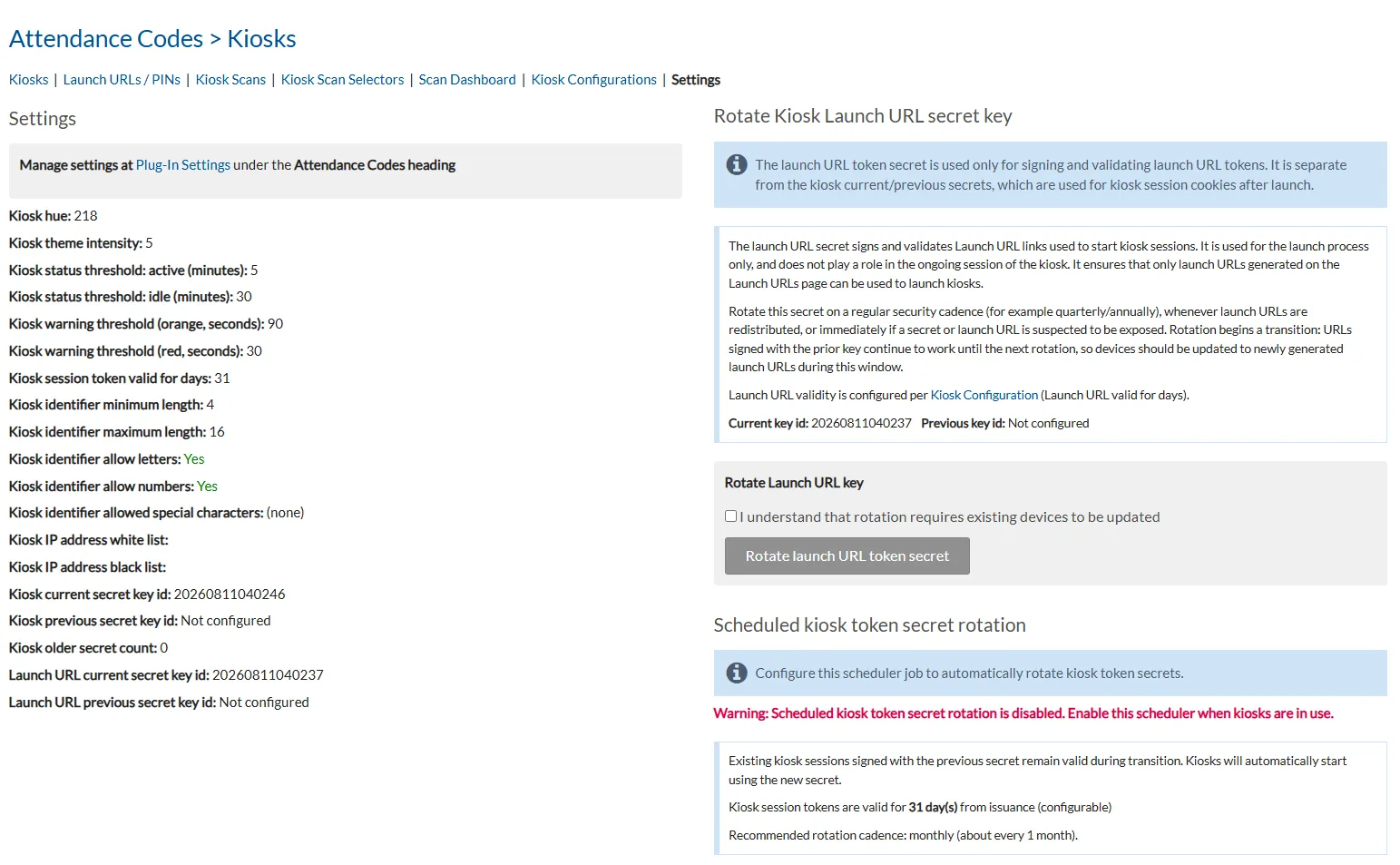
Settings
Advanced settings. Please co-ordinate with your aPlus+ Attendance support team before making modifications to the key or secret settings.